Welcome to CB-Essay
CB-Essay is a free, open source publishing framework that lets you write with, on, and for the web while keeping complete control over how your work appears online and in print.
We’ve been encouraging users of CollectionBuilder to write with their collections since we first started promoting the framework in 2019, mostly through contextual pages like the About page.
More recently, we worked with several (CDIL) Grad Student Fellows who wanted to flip the setup around — featuring their essays on top, with CollectionBuilder living underneath.See Sedimentation, Tender Spaces, and Fire Lines on our [CB-Essay Examples page]({{ ‘02-examples.html’ | relative_url }}). We liked the results, and we thought we’d open up the framework we built from those projects to more users.
The mini-essays below will walk you through the system and get you started.
So What Is It?
CB-Essay is a Jekyll-based framework that combines long-form essay writing with digital collection features. Built on CollectionBuilder, it enables you to create multimodal scholarly narratives, written in Markdown, that integrate primary sources, archival materials, and multimedia items directly into your texts.
Traditional digital publishing tools treat essays and collections as separate entities. CB-Essay connects them, allowing you to:
- Reference collection items using simple includes
- Create asides and margin notes that link to primary sources Like this!
- Publish your work for free on GitHub
- Generate well-designed print and pdf outputs using PagedJS.
- Choose from 8 accessible color/font themes or create your own custom theme
- Fashion the readers’ experience through scroll-based interactions and coordinated typography Keep scrolling to see the next section magically appear!
How Does It Work?
CB-Essay operates on a dual-collection model:
- Essay Collection - Your narrative content lives in the
_essay/folder as Markdown files - Object Collection - Primary sources and items defined in a CSV metadata file
The dual collection model lets you write with your collection of sources, allowing you to integrate references, images, documents, recordings, and videos seamlessly into your writing and into the web.
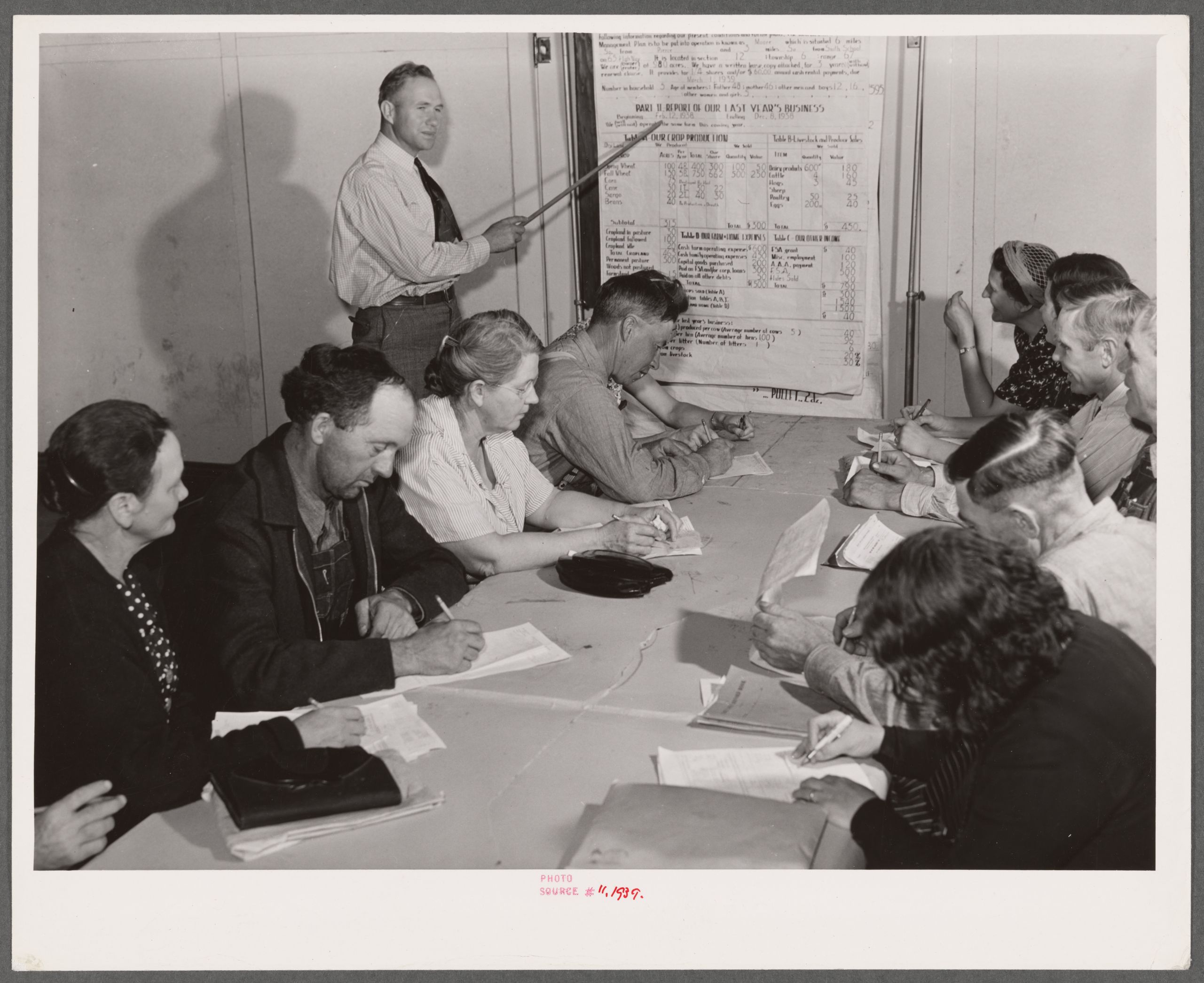
Just follow the plan, as detailed in the below image.Below image credits: The Miriam and Ira D. Wallach Division of Art, Prints and Photographs: Photography Collection, The New York Public Library. ‘Group farm plan writing meeting. Weld County, Colorado’ The New York Public Library Digital Collections. https://digitalcollections.nypl.org/items/1b0a3fc0-1d42-0139-bac7-0242ac110003
Who Should Use CB-Essay?
If you’re reading this, it’s probably you! (Just make a copy of this repostory and drop your own content inside.) But yeah, it’s meant for:
- Digital humanists creating annotated editions or critical apparatus
- Historians presenting narrative alongside primary sources
- Educators building interactive course readers
- Archivists creating context around collections
- Writers publishing long-form digital scholarship
- Students looking to improve their knowledge of web and print design
Bonus: Project Gutenberg Extractor
Want to publish a public domain book? Use our GitHub Action to extract any of 60,000+ books from Project Gutenberg directly into your _essay/ folder - pre-formatted for the site.
See our docs for step by step instructions!
Next Steps
Check out some examples sites, then get started. The remaining essays show off CB-Essay in the wild, and then walk you through setting up your first site and understanding the features.
- See Examples - See CB-Essay as used for DH projects and in demonstration
- Get Started - Set up your first essay in 10 minutes
- Essay Features - Learn and copy all available features
- Collection Integration - Blend essays with collection items
Or jump straight to the documentation for reference guides.
CB-Essay in the Wild
Various Authors
Digital Humanites Projects
CB-Essay powers a variety of digital humanities projects:
Fire Lines: The First CB-Essay Project
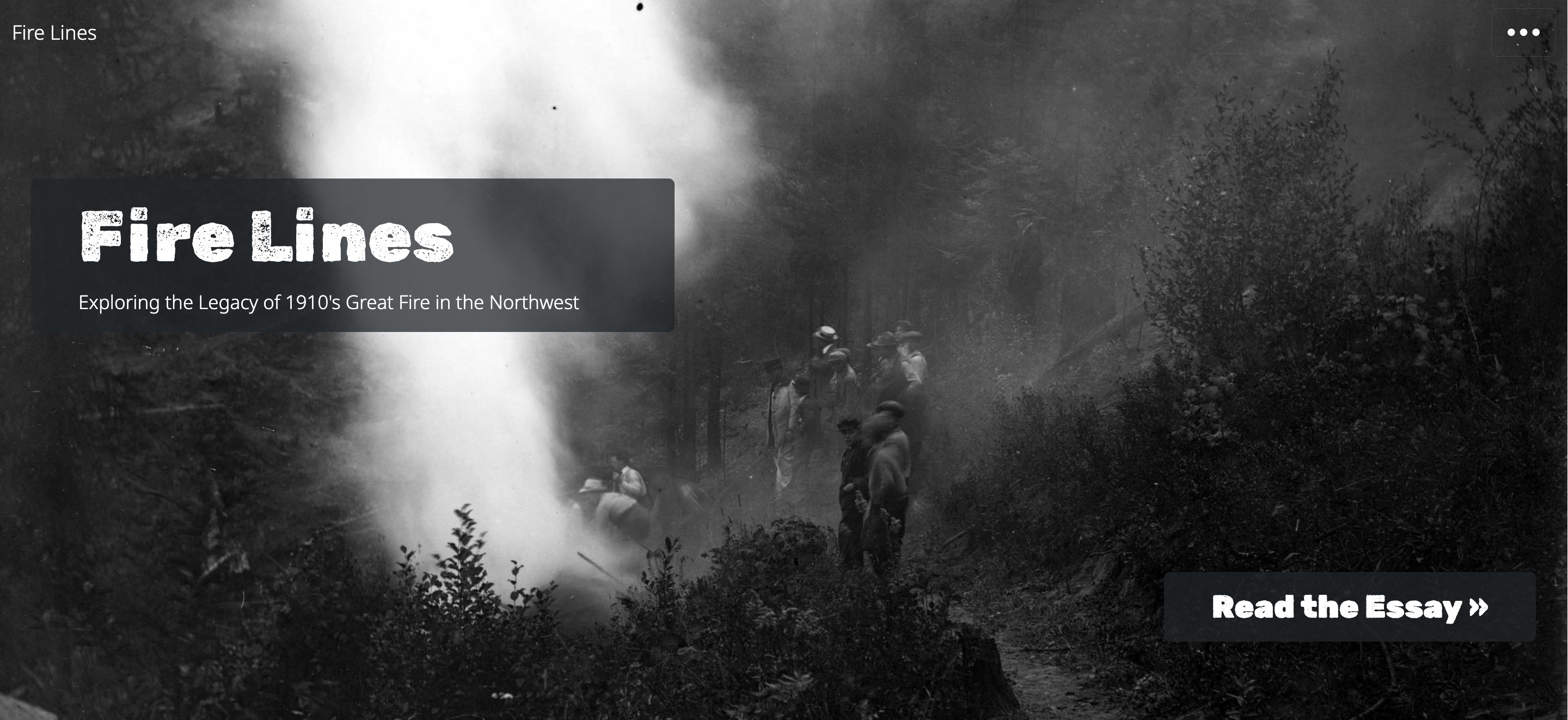
The first CB-Essay, this essay uses archival items from the University of Idaho’s Special Collections and Archives to interrogate the massive wildfire that occurred in 1910, known as the Big Burn.
View: cdil.lib.uidaho.edu/fire-lines
Tender Spaces: Multimodal, Multilingual 5-Part Essay
This extensively customized multimodal and multilinqual essay explores artist Gaëtane Buttigieg’s life, art, and forced institutionalization in the 1970s through personal narratives and video interviews. This project demonstrates CB-Essay’s flexibility for highly designed, custom presentations.
View: cdil.lib.uidaho.edu/tender-spaces
Sedimentation: An Archive of Glen Canyon
A multimedia exploration of Glen Canyon’s entangled human and natural histories, traced through the sedimentary archive. Created by Hannah Green as her English M.A. thesis at the University of Idaho, Sedimentation interweaves five thematic essay “tributaries” — Atmosphere, Water, Biota, Humans, and Land — with archival photographs of the canyon before it was drowned beneath Lake Powell in 1963. The project also features Eddies, a choose-your-own-adventure mode that lets readers navigate through interlinked story fragments in any order, building their own nonlinear path through the canyon’s histories.
View: cdil.lib.uidaho.edu/sedimentation
Demonstration Sites
We set these sites up as demonstrations of the various themes and effects of the platform.
Frankenstein: Extracted Book from Project Gutenberg
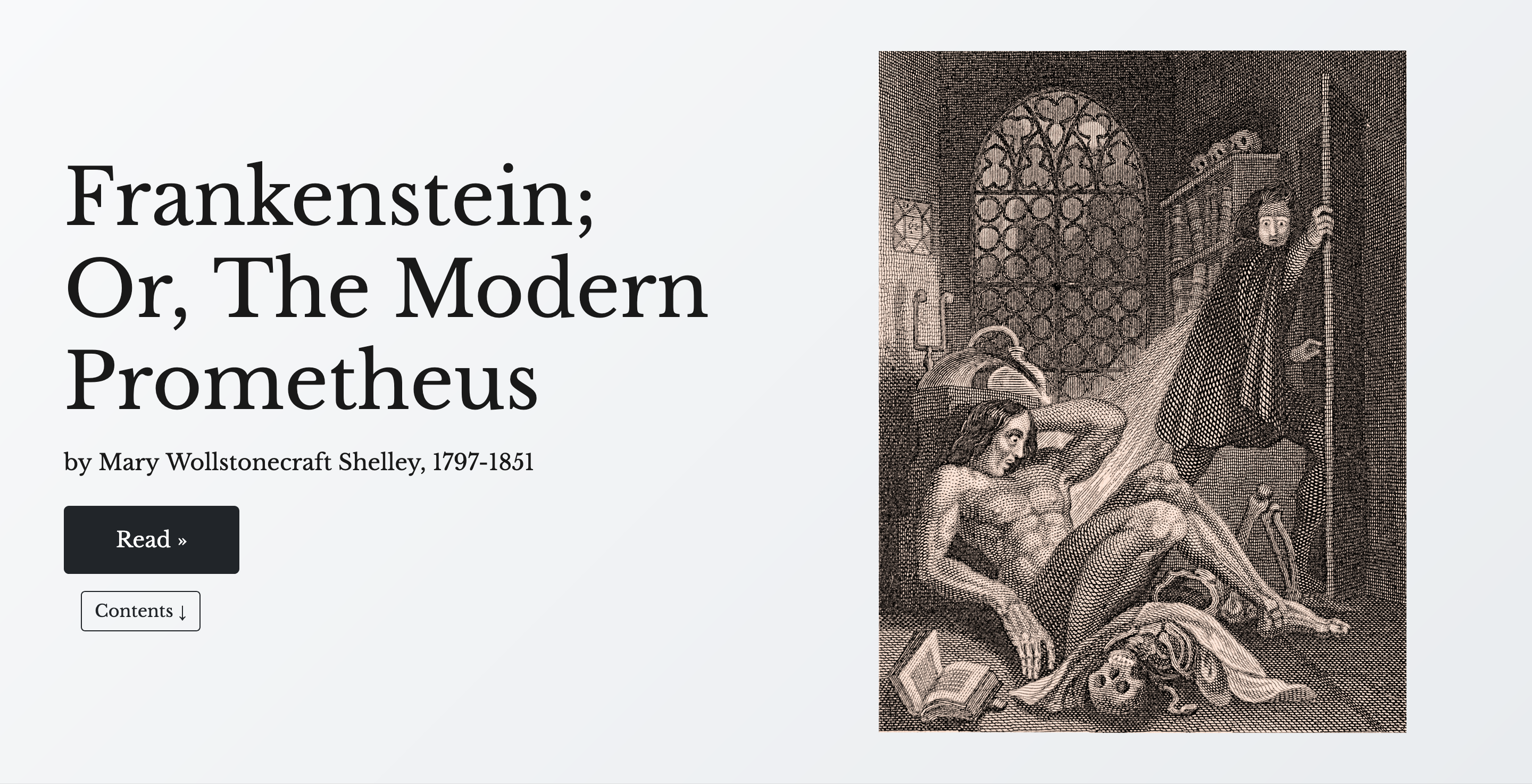
A digital edition of Mary Shelley’s classic novel demonstrating the monograph theme. Features chapter-by-chapter navigation, integrated scholarly apparatus, and historical context from Project Gutenberg.
You can watch me build the Frankenstein site in the video below! (Make sure to turn on GitHub Pages first before you do this!)
View: dcnb.github.io/frankenstein
The Wreck of the Deutschland: Single-page, sectioned poem with scroll interactions
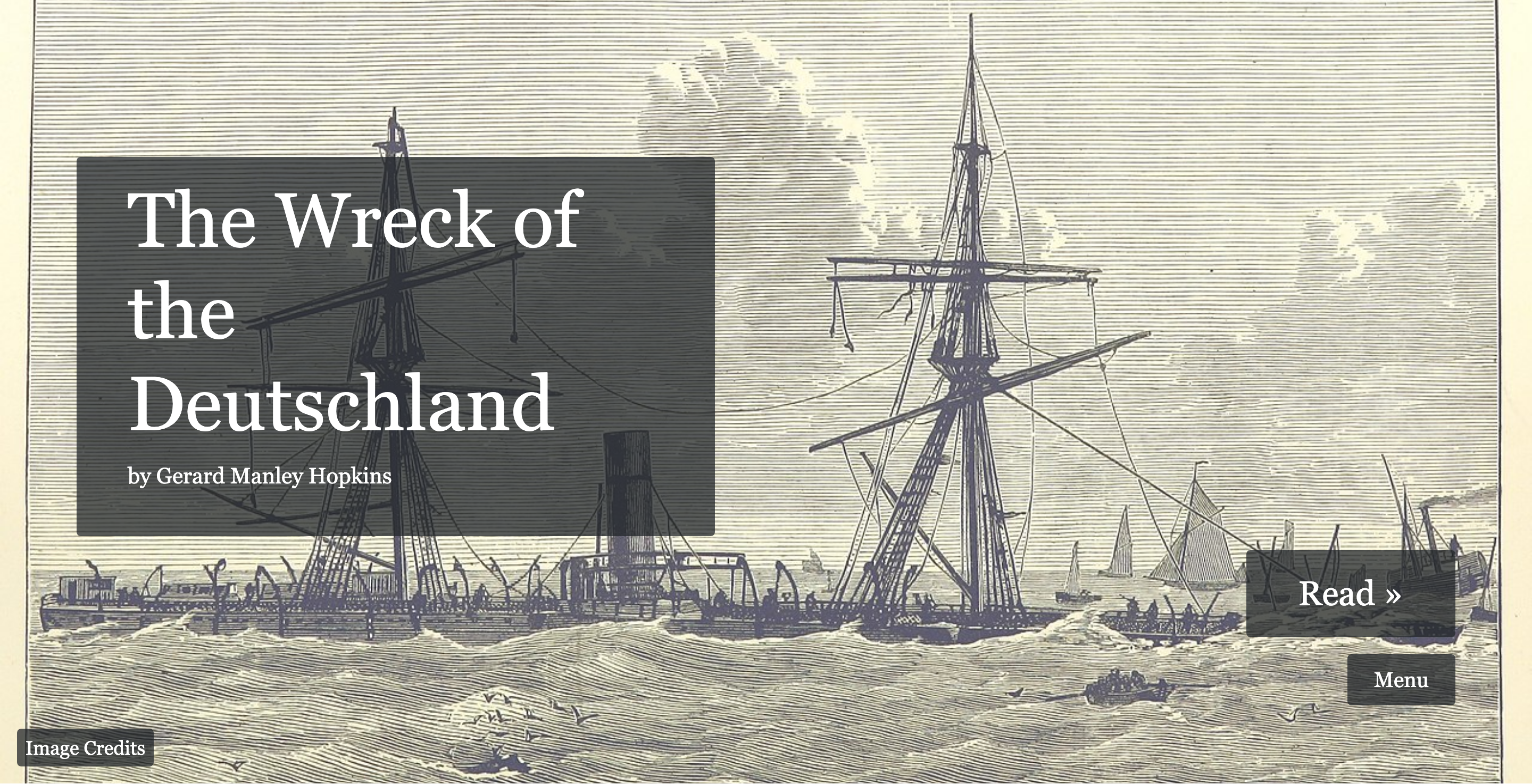
Gerard Manley Hopkins’s poem presented in the essay theme with scrolling transitions and visual breaks. Shows how CB-Essay handles poetry and single-page essays with dramatic effect.
View: dcnb.github.io/wreck-of-the-deutschland
Next Steps
Ready to get started? The remaining essays walk you through everything:
- Get Started - Set up your first essay in 10 minutes
- Essay Features - Learn and copy all available features
- Collection Integration - Blend essays with collection items
Or jump straight to the documentation for reference guides.
Get Started with CB-Essay
This guide walks you through creating your first CB-Essay project from scratch. You’ll have a working essay site in about 10 minutes.
Philosophy: Copy and Replace
This entire demo site is designed to teach through demonstration. Every feature you see can be copied directly into your own essays. See a blockquote you like? Copy the code, replace the content with yours. Find a useful margin note? Same approach.
You don’t need to understand the technical details - just copy what works and replace the content.
Prerequisites
You’ll need:
- A GitHub account (free) – Sign up now!
- A willingness to learn
Step 1: Use This Template
CB-Essay is a GitHub template repository. This means you can create your own copy with one click:
- Navigate to github.com/CollectionBuilder/cb-essay
- Click the green “Use this template” button
- Name your repository (e.g.,
my-essay-project)Tip: Use a descriptive repository name. It will become part of your site’s URL:username.github.io/repository-name - Choose Public or Private (If you’d like to publish the site on GitHub’s free GitHub Pages web hosting, it will need to be Public)
- Click “Create repository”
That’s it! You now have your own CB-Essay repository.
Step 2: Choose Your Editing Workflow
You have several options for working with your essays. Most CB-Essay users work directly on GitHub without installing anything locally.
Option A: Edit on GitHub.com (Easiest!)
Work entirely in your browser - no local installation needed:
- Navigate to your repository on GitHub
- Click into the
_essay/folder - Open
01-welcome.mdand replace it’s content with your own! - Do the same with the other
.mdfiles in the folder, renaming the filenames and replacing the “frontmatter” Frontmatter is the information at the top of each.mdfile that includes information liketitleandorder; it’s separated by---lines at the top and bottom. with your own info.- See Step 3 below for more information on how to edit these files.
- Edit the
_config.ymlfile and the_data/theme.ymlfile to change the site’s title, theme, featured image, and typography - Click “Commit changes”
More Development Options
Get a full VS Code editor without leaving your browser:
- Go to your repository on GitHub
- Press the
.(period) key OR change the URL fromgithub.comtogithub.dev - Edit files in a full-featured code editor
- Replace the content in the
_essayfolder with your own - Edit the
_config.ymlfile and the_data/theme.ymlfile to change the site’s title, theme, featured image, and typography
- Replace the content in the
- Use Source Control panel (third option from the top on the far left) to stage and commit changes
Good for: Multiple file edits, search/replace, file management
Get a complete development environment in the cloud:
- Click Code → Codespaces → Create codespace
- Wait for environment to load (includes Jekyll!)
- Edit files in VS Code interface
- Preview with
bundle exec jekyll s - Use terminal, extensions, and full IDE features
Good for: Testing features, previewing locally, advanced work
For local development with Git and Jekyll installed on your computer, follow the CollectionBuilder-CSV walkthrough. CB-Essay uses the same setup process.
Good for: Offline work, full control, fastest preview cycle
Step 3: Create Your First Essay
Now that you’ve chosen your workflow, let’s add your content. Create a file in _essay/ named my-first-essay.md with this content:
---
title: My First Essay
order: 1
---

## Introduction

This is my first essay using CB-Essay. I can write in **Markdown** with _formatting_.

Here's a paragraph with a [link](https://example.com).

## Another Section

- Bullet points work
- As expected<sup class="aside-ref"></sup><span class="aside">So do asides!</span>

### Subsections too

I can add blockquotes:

{% include essay/feature/blockquote.html
   quote="This is a quotation"
   speaker="Someone Important" %}
Notice the front matter (between --- lines):
title: Your essay’s titleorder: Controls navigation sequence (1, 2, 3…)
Quick Option: Project Gutenberg
Want to start with a complete book? Extract one from Project Gutenberg:
- Enable GitHub Pages
- Go to your repository’s Actions tab
- Click “Extract Gutenberg Book” workflow
- Click “Run workflow” and enter a book ID (e.g.,
84for Frankenstein)
Your _essay/ folder will be populated with chapter files automatically. Find books at gutenberg.org.
Step 4: Customize Configuration
Edit two main configuration files:
_config.yml - Site Settings
These settings control what appears on your homepage cover page:
title: "Your Essay Title"
author: "Your Name"  # Displays as "by Your Name" on cover page
tagline: "A brief description"  # Only shows if author is empty
description: "Longer description for search engines (160 chars)"
Cover Page Display:
- title: Your main title (always displays)
- author: Shows as “by [Author Name]” beneath the title
- If you provide an author, it displays instead of the tagline
- You can use HTML for multiple lines:
author: "Author Name<br>Edited by Editor Name"
- tagline: Only displays if author field is empty
- Use for subtitle or project description
- Can also use HTML:
tagline: "A Digital Edition<br>Published 2024"
_data/theme.yml - Appearance
# Navigation & Homepage
show-contents-nav: false  # true: navbar shows "Contents" button + chapter panel
show-homepage-toc: false  # true: homepage displays chapter table of contents
show-section-nav: false   # true: floating H2 sidebar on essay pages (wide screens)

# Homepage image
image-style: full-image  # full-image, half-image, or no-image
featured-image: /assets/img/your-image.jpg

# Color theme
color-theme: aldine  # default, idaho, lyre, nonesuch, aldine, doves, kelmscott, gregynog, ashendene

# Typography
base-font-size: 1.2em
base-font-family: theme       # theme (auto-matched) | Georgia | custom Google Font
display-font-family: theme    # theme | Georgia | custom
Color themes: Choose from 8 built-in accessible themes inspired by historical printing, or use custom with your own hex color.
Fonts: Set to theme for automatic pairing with your color theme, Georgia for offline use, or provide a custom Google Font with font-cdn.
You can edit these files directly on GitHub or in any of the editors mentioned in Step 2.
Step 5: Add More Essays
Create additional essay files in _essay/:
_essay/
├── 01-introduction.md   (order: 1)
├── 02-chapter-one.md    (order: 2)
└── 03-conclusion.md     (order: 3)
Essays will appear in navigation based on their order value, not the filename.Pro tip: Use order values like 10, 20, 30 instead of 1, 2, 3. This makes it easy to insert essays later without renumbering everything.
Step 6: Configure Print/PDF Output (Optional)
CB-Essay includes sophisticated print and PDF generation using Paged.js. Configure it in _data/theme.yml:
print:
  author: "Your Name"           # Author shown on cover and in PDF metadata
  institution: "Your Org"        # Institution on cover page
  cover-subtitle: ""             # Optional subtitle for book cover
  show-individual: true          # Show individual essay print cards
  show-book: true                # Show book builder
  aside-style: margin            # margin or inline
Aside styles:
margin: Margin notes float into page gutter (requires wider right margin)inline: Margin notes appear as indented callout blocks
Once configured, access the Print Hub at /print/ to:
- Print individual essays in Letter, A4, or 6×9″ formats
- Build custom PDF books by selecting specific essays
- Generate print-ready PDFs directly from your browserTip: The Print Hub is automatically added to your site navigation via
_data/config-nav.csv
Step 7: Deploy to GitHub Pages
When you’re ready to publish, set up GitHub Pages:
- Go to your repository → Settings → Pages
- Under Source, select GitHub Actions
- Click Configure on the Jekyll workflow
- Change
ruby-version: '3.1'to'3.4'(line 40) - Click Commit changes
After 2-3 minutes, visit https://YOUR-USERNAME.github.io/YOUR-REPO-NAME/
Your essay is live! 🎉
For other deployment options, see CollectionBuilder’s Deployment Documentation.
Next Steps
Now that your site is running, explore what you can do:
- Essay Features - Learn all available features with copy-paste examples
- Collection Integration - Add collection items to your essays
Or dive into the documentation.
You’re ready to write! The next essay will show you every available feature with working examples you can copy.
Writing Features
CB-Essay provides specialized includes that extend Markdown for scholarly writing. This essay demonstrates every feature with working examples you can copy directly into your own work.
The copy-and-replace principle: Find a feature you like, copy the code block, paste it into your essay, and replace the content with yours. That’s it!
Basic Markdown
Start with standard Markdown formatting:
Headings
## Heading 2
### Heading 3
#### Heading 4
Text Formatting
Bold text with **bold**
Italic text with *italic*
Bold italic with ***bold italic***
Links
Link text with [text](url)
Images

Lists
Bulleted:
- Item one
- Item two
- Nested item
Numbered:
- First item
- Second item
- Third item
Code Blocks
Use triple backticks for code:
```yaml
---
title: Your Essay
order: 1
---
```
Blockquotes
Styled quotations with optional attribution and source links.
Basic Blockquote
Knowledge comes, but wisdom lingers
Copy this:
{% include essay/feature/blockquote.html
   quote="Knowledge comes, but wisdom lingers"
   speaker="Alfred Lord Tennyson" %}
With Source Citation
It is a truth universally acknowledged, that a single man in possession of a good fortune, must be in want of a wife.
Copy this:
{% include essay/feature/blockquote.html
   quote="Your quote text here"
   speaker="Author Name"
   source="Book or Article Title" %}
Large Centered Quote w/ No Border
The best way out is always through
Copy this:
{% include essay/feature/blockquote.html
   quote="Your dramatic quote"
   speaker="Famous Person"
   size="xl"
   align="center"
   border=false  %}
Size options: sm, md, lg, xl, xxl
Align options: left, center, right
Asides (Margin Notes)
Margin notes appear beside your text on desktop, inline on mobile.
Text-Only Aside
Here’s a paragraph with a margin note.This is a margin note providing additional context or commentary. The text continues naturally, and the aside appears in the margin.
Copy this:
{% include essay/feature/aside.html
   text="Your margin note text here" %}
Aside with Collection Item
Collection items can appear in asides with thumbnails.
Click to view

Administration Building, University of Idaho, No. 30 The aside shows a preview of the item with a link to view it.
Copy this:
{% include essay/feature/aside.html
   objectid="demo_001"
   text="Context about this item" %}
Note: The objectid must exist in your collection metadata CSV file.
Image Galleries
Display multiple collection items as inline galleries.
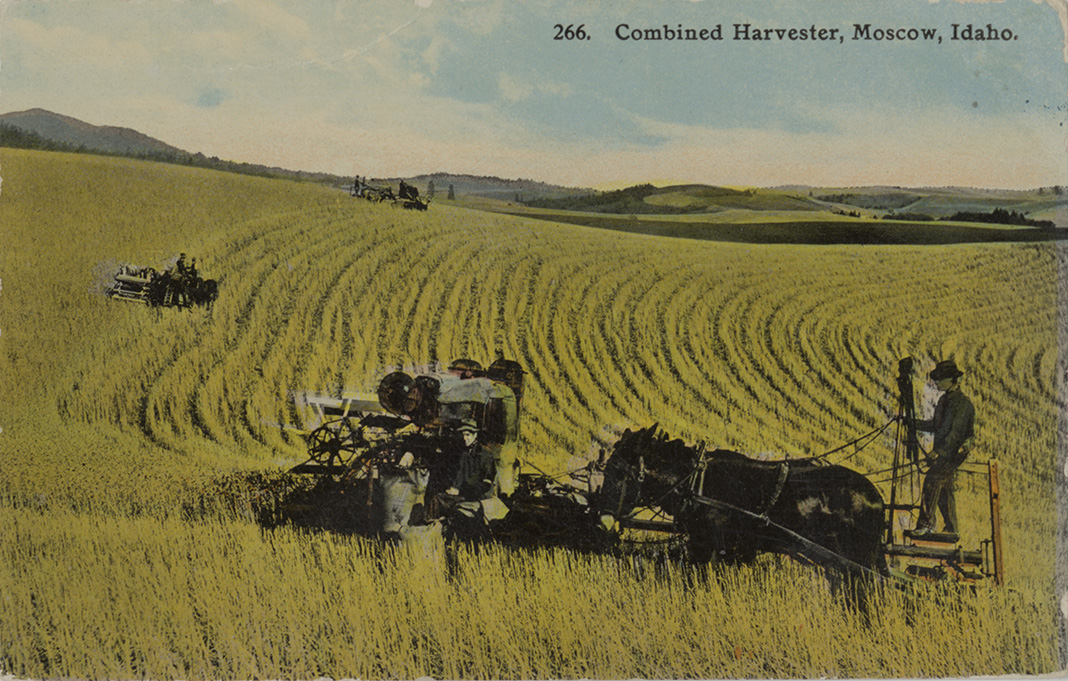
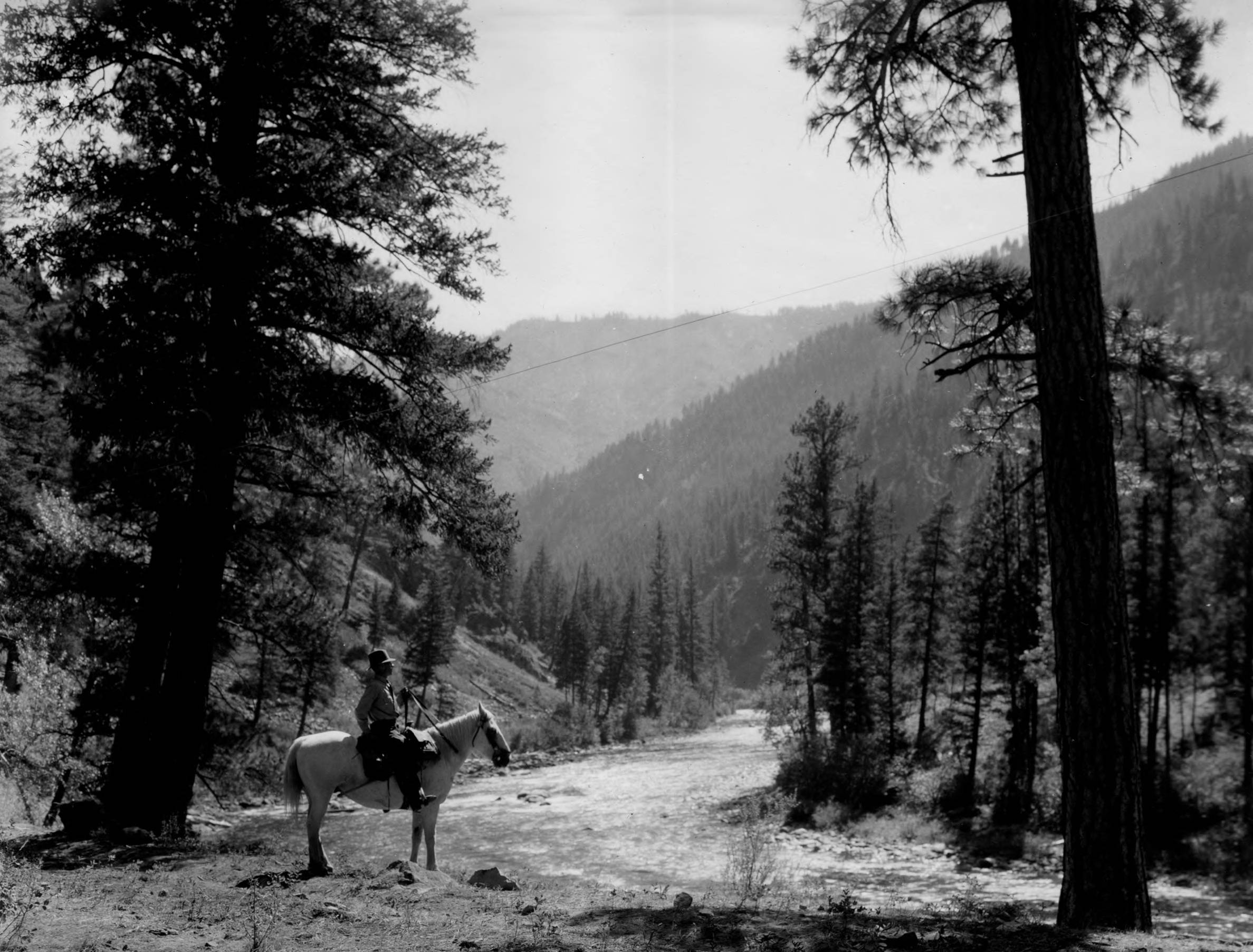
Copy this:
{% include essay/feature/image-gallery.html
   objectid="item1;item2;item3" %}
Separate multiple object IDs with semicolons. Items must exist in your metadata.
Filtered Collection Galleries
Below is another type of gallery, one that is filtered from the collection based on liquid logic (here it is item.format contains 'image' and item.date > '1920') with an optional header.
Items Dated after 1920
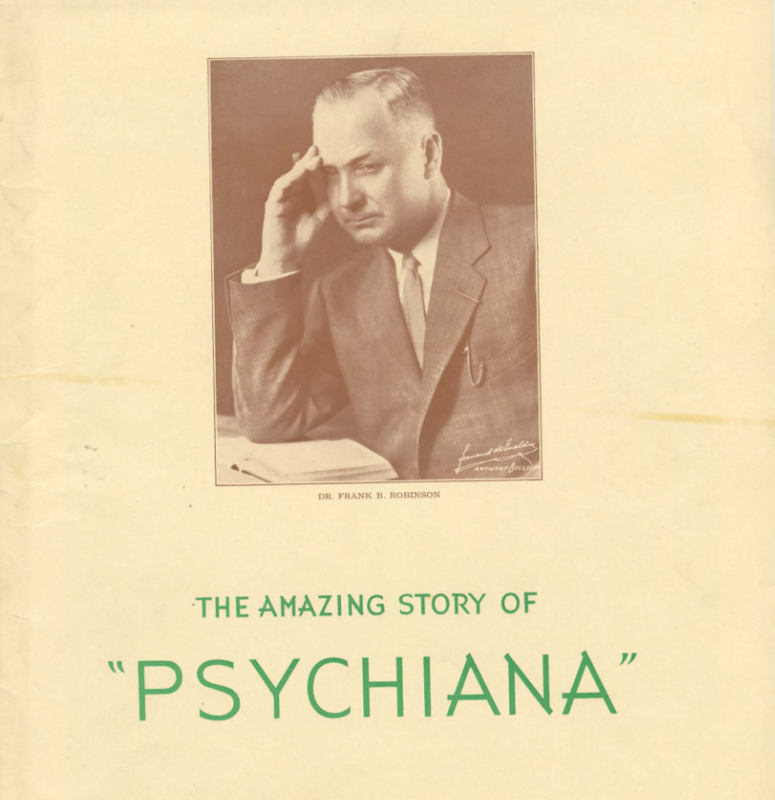

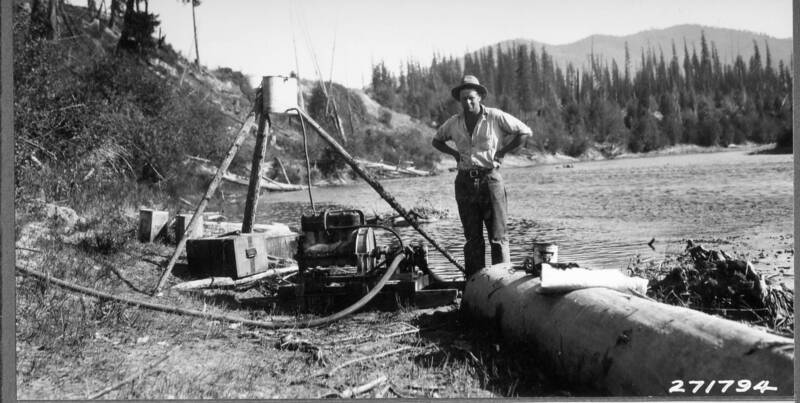
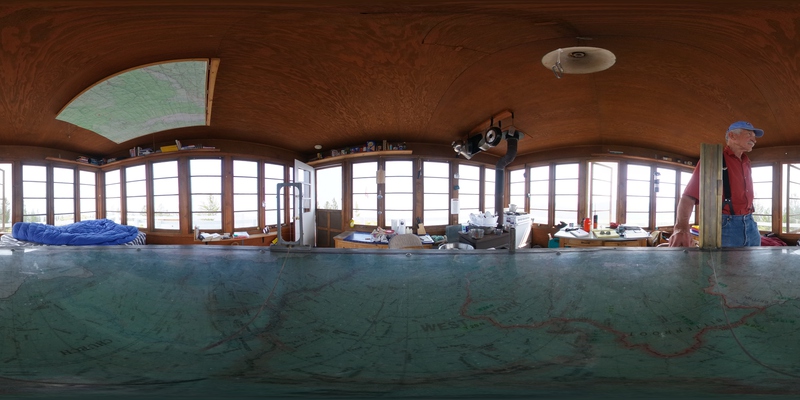
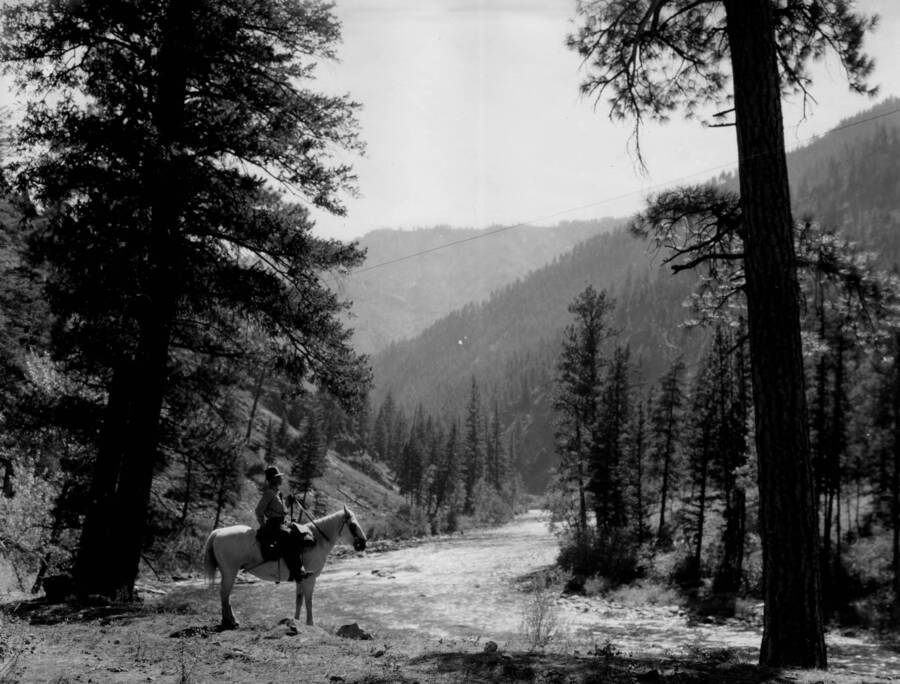
Copy this:
{% include feature/gallery.html
   heading="Items Dated after 1920"
   captions=false
   filter="item.date > '1920'" %}
Mini Maps
Embed small maps at specific coordinates.
Copy this:
{% include feature/mini-map.html
   latitude="46.727485"
   longitude="-117.014185"
   map-zoom="18"
   caption="This is the library where I work!" %}
Finding coordinates:
- Right-click location on Google Maps → Click coordinates to copy
- Or use LatLong.net
Zoom levels: 1 (world) to 18 (street level)
Section Transitions
Create visual breaks between major sections using scrollama transitions.
New Major Section
The section break above creates a visual pause and scroll-triggered transition effect. This helps structure long essays into distinct parts.
Copy this:
{% include essay/new-section.html %}

## Your New Section Title

Content continues here...
Use sparingly - 3-4 sections per essay maximum for best effect.
CollectionBuilder Features
Beyond essay-specific includes, you can use any standard CollectionBuilder feature:
Item Cards
Copy this:
{% include feature/card.html
   objectid="demo_001"
   width="50"
   centered=true %}
Shows a card with the item image and metadata.
Item Images
Copy this:
{% include feature/image.html
   objectid="demo_012"
   width="75" %}
Displays an item image with caption from metadata.
Timelines
For essays with chronological elements, embed the full timeline:
{% include feature/timeline.html %}
Subject Clouds
Visualize subject keywords from your collection:
{% include feature/cloud.html fields="subject" %}
Combining Features
You can combine multiple features for rich, scholarly presentations:
Example: Blockquote + Aside + Map
I went to the woods because I wished to live deliberately
Thoreau’s cabin was located on the shores of Walden PondThe cabin measured 10 feet by 15 feet and cost $28.12 to build. in Concord, Massachusetts, where he lived from 1845 to 1847.
The location provided the solitude Thoreau sought for his philosophical experiment in simple living.
Print & PDF Output
Most features work in print PDFs. Blockquotes, asides, images, and section breaks all render beautifully. Mini-maps and videos are web-only and won’t appear in print.
Visit the Print Hub to generate PDFs in Letter, A4, or 6×9″ formats. See the Print Guide for complete details including margin note styles, page formats, and accessibility features.
Best Practices
Blockquotes
- Use for significant quotations only
- Always attribute with
speakerparameter - Keep quotes focused and relevant
- Don’t nest blockquotes
Asides
- Maximum 3-4 per essay
- Keep text brief (1-3 sentences)
- Ensure objectids exist in metadata
- Test display on mobile AND in print preview
Maps
- Verify coordinates are accurate
- Choose appropriate zoom level (12-14 for cities)
- Add context about the location in text
- Note: Maps won’t appear in print PDFs (web-only feature)
Section Breaks
- Use for major structural divisions
- 3-4 maximum per essay
- Ensure sections are substantial
- Works best with longer essays (1000+ words)
Next Steps
You now know every feature available in CB-Essay! The final essay shows how to integrate collection items more deeply:
Remember: Copy any feature from this page, replace the content with yours, and it will work in your essay!
Collection Integration
CB-Essay’s power comes from integrating collection items with your narrative. This essay shows you how to add your first collection item to an essay using a simple aside (margin note).
The Dual-Collection Model
CB-Essay manages two collections that work together:
- Essay Collection (
_essay/folder) - Your Markdown essay files with sequential navigation - Object Collection (CSV in
_data/) - Digital items (images, PDFs, audio, video) you reference in essays
Reference any collection item in your essays using its objectid.
Your First Collection Item
Collection items are stored in a CSV file in _data/. Each item needs at minimum:
objectid- Unique identifier (lowercase, no spaces)title- Item nameformat- File type (image/jpeg, application/pdf, etc.)
For complete metadata requirements, see Collection Integration docs.
Asides with Collection Items
The most common way to add collection items to essays is through asides (margin notes). Let’s look at two examples:
Text-Only Aside
Here’s a simple margin note.This aside contains only text - useful for brief explanations or commentary. The aside appears in the margin on desktop and inline on mobile.
Copy this:
{% include essay/feature/aside.html
   text="Your margin note text here" %}
Aside with Collection Item
Moscow’s Administration Building
Click to view
Administration Building, University of Idaho, No. 30 was one of the first permanent structures on campus.
Copy this:
{% include essay/feature/aside.html
   objectid="demo_001"
   text="Context about this item" %}
The aside automatically shows the item’s thumbnail and links to its full page.
Note: The objectid must exist in your metadata CSV file in _data/.
More Aside Options
You can also use asides with:
- PDFs - Display document thumbnails
- Audio/Video - Show media icons with playback
- Custom captions - Override item titles
- Height control - Adjust image display size
See the Essay Features docs for complete aside options and other CollectionBuilder features like item cards, image galleries, timelines, maps, and subject clouds.
Example: Compound Objects
Some items have multiple parts (like a photo album with many images). These are called compound objects.
When you reference a parent objectid, CB automatically knows about its children:
Click to view

This lookout tower has multiple associated media files
{% include essay/feature/aside.html
   objectid="demo_008"
   text="This lookout tower has multiple associated media files" %}
The item page will show all child items together. See the Compound Objects docs for details.
Collection Pages
Your CSV metadata automatically creates these pages:
- Browse - Grid view of all items
- Map - Items with lat/long displayed geographically
- Timeline - Items with dates shown chronologically
- Subjects - Subject keyword cloud
- Locations - Location keyword cloud
- Data - Download metadata as CSV/JSON
No additional configuration needed - they work automatically!
Quick Start Workflow
To add collection items to your essays:
- Add items to your CSV: Create or edit
_data/your-metadata.csvwith objectids, titles, and formats - Reference in essays: Use objectids in asides or other includes
- Preview: Check that objectids resolve correctly
For detailed metadata setup, see the Get Started guide and Collection Integration docs.
Best Practices
- Use descriptive objectids (
admin_building_1909notimg001) - Don’t overwhelm your text - 3-5 asides per essay maximum
- Use asides for supplementary items, not primary content
- Optimize images - 1200px max width recommended
- Provide alt text in your metadata for accessibility
Print Considerations
Collection items work beautifully in print PDFs. Asides with images display as margin notes (if using aside-style: margin) or inline callouts.
See the Print Guide for full details on print output.
Next Steps
You now understand the basics of integrating collection items with CB-Essay!
Keep Learning
- CB-Essay Documentation - Complete reference including advanced collection features
- CB-CSV Documentation - CollectionBuilder reference for metadata and visualizations
- Metadata Guide - Detailed field specifications
Get Help
- CB Discussion Forum - Community support
- Open an issue - Report bugs or request features
Remember: Start simple with one or two collection items in asides, then explore advanced features as you need them. Copy the examples above and adapt them for your own work!