Scrolly Media Gallery
Every scrolly-media.html animation, layout, and video variant, demonstrated live with the exact code that produced it. Start with Scroll-Based Features if you haven’t seen the basic pattern yet.
Zoom In
animate="zoom-in" zooms the image toward a point as you scroll through the panel. The zoom amount is directly proportional to scroll position — there is no timer.
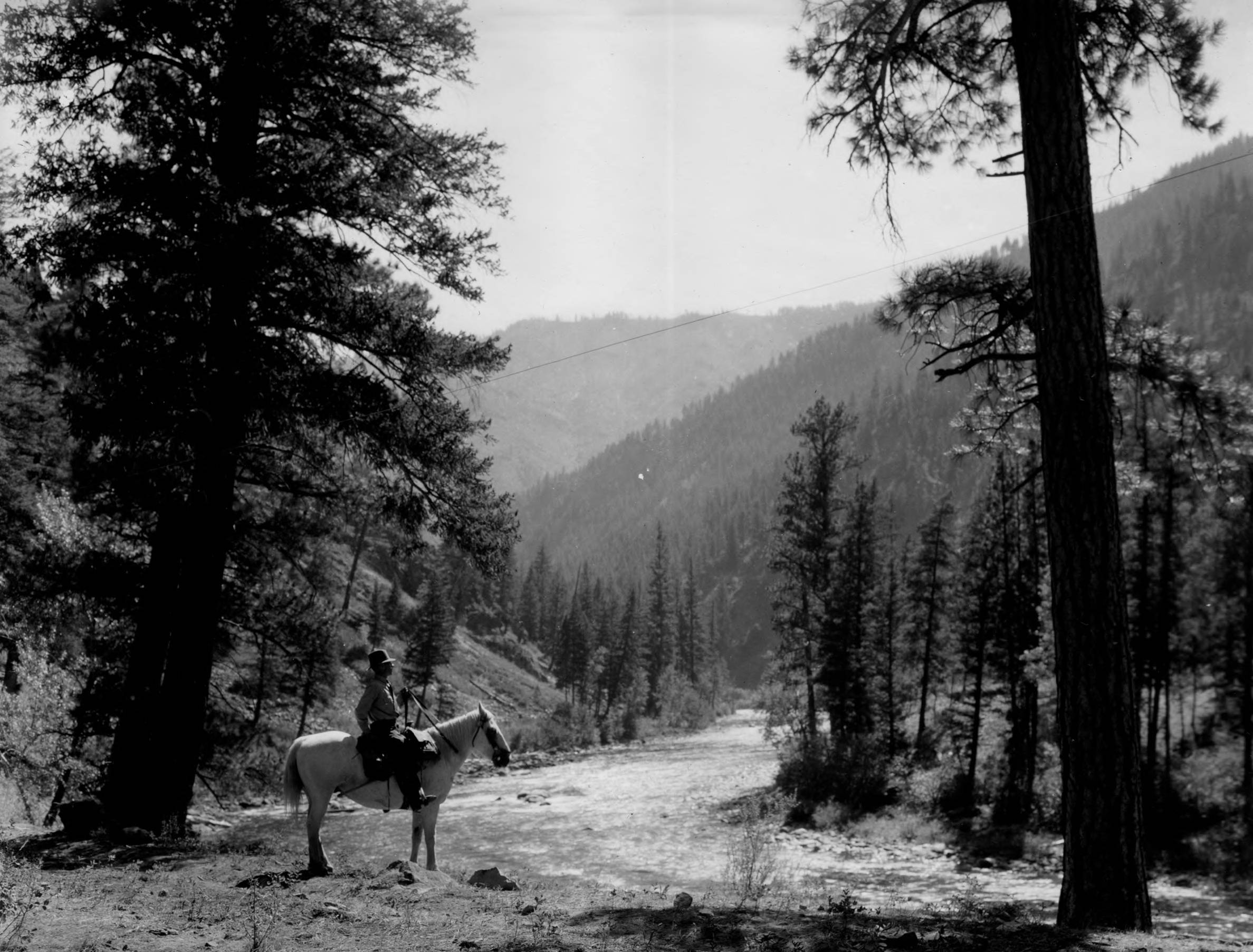
Scroll through this panel slowly and watch the image zoom in. Fast scrolling zooms fast; pausing holds the image at whatever zoom level you’ve reached.
A new image, with image-focus="60% 30%" added. The zoom now targets the upper portion of the frame. Use image-focus with zoom-in to pull your reader’s attention toward a specific subject in the photograph.
Copy this:
{% include essay/feature/scrolly-media.html objectid="demo_031" animate="zoom-in" %}

Scroll through this panel slowly and watch the image zoom in. Fast scrolling zooms fast; pausing holds the image at whatever zoom level you've reached.

{% include essay/feature/scrolly-step.html objectid="demo_011" animate="zoom-in" image-focus="60% 30%" %}

A new image, with `image-focus="60% 30%"` added. The zoom now targets the upper portion of the frame. Use `image-focus` with `zoom-in` to pull your reader's attention toward a specific subject in the photograph.

{% include essay/feature/scrolly-end.html %}
Zoom Out
animate="zoom-out" starts the image zoomed in and pulls back as you scroll — useful for establishing shots that open from a close detail to wider context.
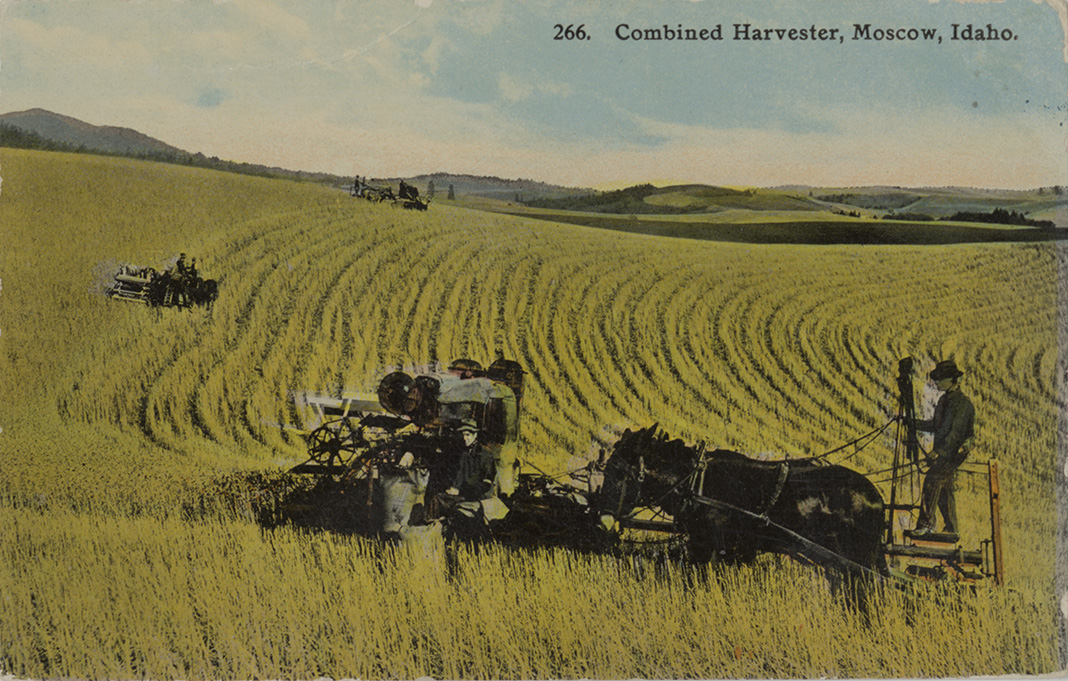
The image begins close and expands outward. This reversal creates a sense of revelation — arriving at a scene from a detail rather than entering it from a distance.
Copy this:
{% include essay/feature/scrolly-media.html objectid="demo_033" animate="zoom-out" %}

The image begins close and expands outward. This reversal creates a sense of revelation — arriving at a scene from a detail rather than entering it from a distance.

{% include essay/feature/scrolly-end.html %}
Pan Left / Pan Right
Pan animations sweep the image horizontally as you scroll. Best suited to wide panoramas or long horizontal documents where content is distributed across the frame.
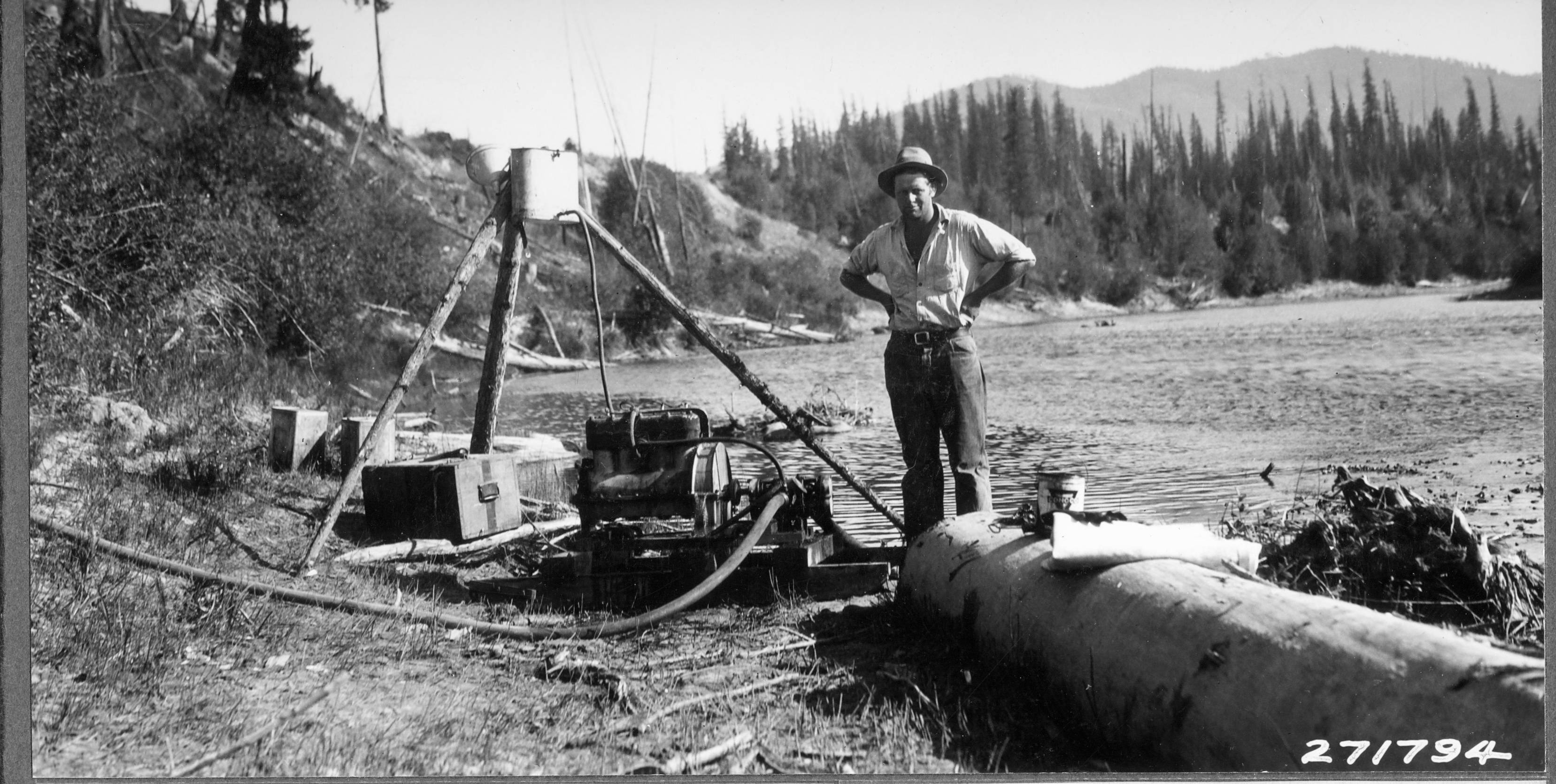
Pan right — the image travels from its left edge to its right edge as you scroll. Slow your scrolling and you’ll see the pan slow with you.
Pan left — this panel swaps to a new image and pans in the opposite direction. Alternating directions between panels creates a reading rhythm that feels intentional.
Copy this:
{% include essay/feature/scrolly-media.html objectid="demo_006" animate="pan-right" %}

**Pan right** — the image travels from its left edge to its right edge as you scroll. Slow your scrolling and you'll see the pan slow with you.

{% include essay/feature/scrolly-step.html objectid="demo_009" animate="pan-left" %}

**Pan left** — this panel swaps to a new image and pans in the opposite direction. Alternating directions between panels creates a reading rhythm that feels intentional.

{% include essay/feature/scrolly-end.html %}
Ken Burns
animate="ken-burns" combines a slow zoom with a diagonal pan. It uses a preset lower-left → upper-right trajectory and is the effect to reach for when you want motion without needing precise control over the direction.
The Ken Burns effect gives archival photographs a sense of life without calling attention to itself. It works best with images that have rich detail throughout the frame rather than a single focal point.
Each panel with animate="ken-burns" resets to the start of the diagonal drift when it enters view. The motion always begins from the same position regardless of where the previous panel left off.
Copy this:
{% include essay/feature/scrolly-media.html objectid="demo_033" animate="ken-burns" %}

The Ken Burns effect gives archival photographs a sense of life without calling attention to itself. It works best with images that have rich detail throughout the frame rather than a single focal point.

{% include essay/feature/scrolly-step.html objectid="demo_001" animate="ken-burns" step-height="1150vh" %}

Each panel with `animate="ken-burns"` resets to the start of the diagonal drift when it enters view. The motion always begins from the same position regardless of where the previous panel left off.

{% include essay/feature/scrolly-end.html %}
Focus Point
image-focus controls which part of the image is visible in cover mode and sets the target point for zoom animations. The value is any CSS object-position — "center", "top", "80% 30%", etc.
Static focus. image-focus="15% 50%" keeps the left portion of the image in frame. Without an animation, this is a static crop — no motion, just a different window into the image.
Zoom toward the focus. The same focus point, now with animate="zoom-in". The zoom pulls inward toward the left edge. The reader’s eye is drawn to the same spot that image-focus framed.
Opposite corner. The focus point flips to the right side. Each panel can redirect the zoom to a different part of the same image — a way to narrate across a photograph without swapping it.
Copy this:
{% include essay/feature/scrolly-media.html objectid="demo_031" image-focus="15% 50%" %}

**Static focus.** `image-focus="15% 50%"` keeps the left portion of the image in frame. Without an animation, this is a static crop — no motion, just a different window into the image.

{% include essay/feature/scrolly-step.html objectid="demo_031" animate="zoom-in" image-focus="15% 50%" %}

**Zoom toward the focus.** The same focus point, now with `animate="zoom-in"`. The zoom pulls inward toward the left edge. The reader's eye is drawn to the same spot that `image-focus` framed.

{% include essay/feature/scrolly-step.html objectid="demo_031" animate="zoom-in" image-focus="85% 50%" %}

**Opposite corner.** The focus point flips to the right side. Each panel can redirect the zoom to a different part of the same image — a way to narrate across a photograph without swapping it.

{% include essay/feature/scrolly-end.html %}
Sidecar Layout
The sidecar layout pins the image on the right while text panels scroll on the left. Images use object-fit: contain by default so the full document is always visible — no cropping. Collapses to the immersive stacked style on mobile.
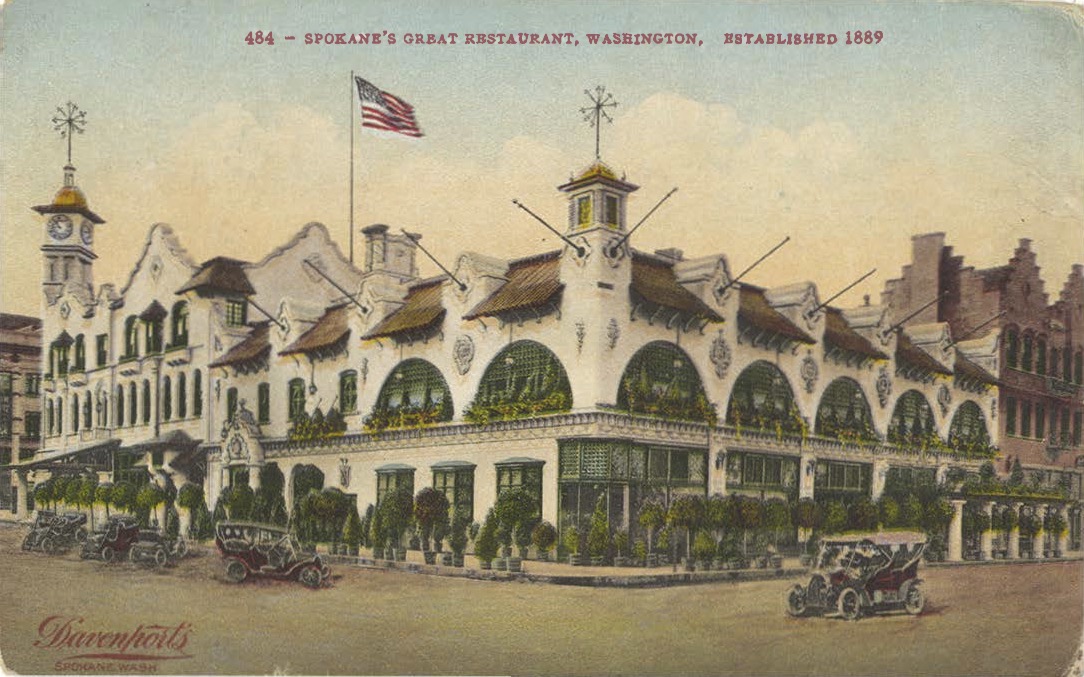
The front side of an archival postcard. Sidecar is well suited to objects with multiple sides, facing pages, or before/after states — the reader can follow your commentary while the relevant image holds steady.
The reverse side. Swapping images in sidecar feels like turning a page — the text panel advances the story while the image on the right catches up.
Copy this:
{% include essay/feature/scrolly-media.html objectid="demo_019" layout="sidecar" %}

The front side of an archival postcard. Sidecar is well suited to objects with multiple sides, facing pages, or before/after states — the reader can follow your commentary while the relevant image holds steady.

{% include essay/feature/scrolly-step.html objectid="demo_020" %}

The reverse side. Swapping images in sidecar feels like turning a page — the text panel advances the story while the image on the right catches up.

{% include essay/feature/scrolly-end.html %}
Sidecar also accepts animate parameters — animate="zoom-in" on a sidecar step zooms into the pinned image on the right while the text scrolls on the left.
Video Background
Video backgrounds work through the same objectid and src params as images — no separate parameter needed. The include detects video automatically from the collection item’s display_template or from the file extension (.mp4, .webm, .ogg).
From the collection — set display_template: video on the item in your metadata CSV:
{% include essay/feature/scrolly-media.html objectid="demo_video_001" %}
The item’s image_small is used as the poster frame automatically.
From a direct file path — point src at any .mp4, .webm, or .ogg file:
{% include essay/feature/scrolly-media.html src="/assets/video/bg.mp4" poster="/assets/img/bg-poster.jpg" %}
poster is optional but recommended for direct paths — it prevents a blank background while the video loads. The video autoplays, loops, and is muted (required for browser autoplay). All layouts, image-focus, and scroll-linked animations work exactly as they do for images.
Step-swapping via objectid or src on scrolly-step.html is not available when a video background is active; the video plays continuously through all steps.
A working video background — give it a moment to start playing. Use this feature sparingly; there’s no sound.
Copy this:
{% include essay/feature/scrolly-media.html objectid="demo_010" video-start="10" %}

A working video background — give it a moment to start playing. Use this feature sparingly; there's no sound.

{% include essay/feature/scrolly-end.html %}
Controlling Scroll Speed
step-height sets the minimum height of each panel — how far the reader must scroll before the next panel triggers. The CSS default is 300vh. Shorter values create faster pacing; longer values slow reading down. This applies to map-background blocks too.
Set it on scrolly-media.html to apply across the whole block, or on individual scrolly-step.html calls to vary the pace within a block:
{% include essay/feature/scrolly-media.html objectid="your_image" step-height="150vh" %}

Quick panel — moves through in half the default scroll distance.

{% include essay/feature/scrolly-step.html objectid="another_image" step-height="500vh" %}

Slow panel — the reader lingers before the next image enters.

{% include essay/feature/scrolly-end.html %}
For scroll-linked animations (zoom-in, pan-right, etc.), longer step-height means the animation plays out more gradually — the full zoom or pan happens over a greater scroll distance.
All Parameters
scrolly-media.html — opens the block:
| Parameter | Default | Description |
|---|---|---|
objectid |
— | Collection item ID; video detected automatically from display_template |
src |
— | Direct path to an image or video file (.mp4, .webm, .ogg auto-detected) |
poster |
— | Poster frame for src-based videos (collection items use image_small automatically) |
video-start |
— | Start time in seconds for video backgrounds; also applied on every loop restart |
alt |
— | Image alt text |
caption |
— | Small credit line at bottom-right of image |
layout |
immersive |
immersive or sidecar |
position |
left |
First panel position: left, center, right |
text-background |
light |
First panel style: light or dark |
step-height |
300vh |
Minimum scroll height per panel |
image-focus |
center |
CSS object-position value; also sets zoom target |
animate |
— | zoom-in, zoom-out, pan-left, pan-right, ken-burns |
scrolly-step.html — adds a panel (same parameters except layout):
image-focus and animate on a step override the opening values for that panel only. Steps without these parameters keep the current image and no animation.
scrolly-end.html — no parameters. Always required to close the block, for image/video and map backgrounds alike.
Next Steps
→ Scrolly Map Gallery — every map transition, basemap switch, and marker option.